Welcome to Fennec
The 5-minute tour of your new nightclub OS.
Fennec is the all-in-one operating system for premium venues. After signing up, you land on the Dashboard — your live command center. From the left sidebar you can navigate to every product: Floor plans, Events, Bottle service, Coat check, Promoters, CRM, Campaigns, Settings and more.
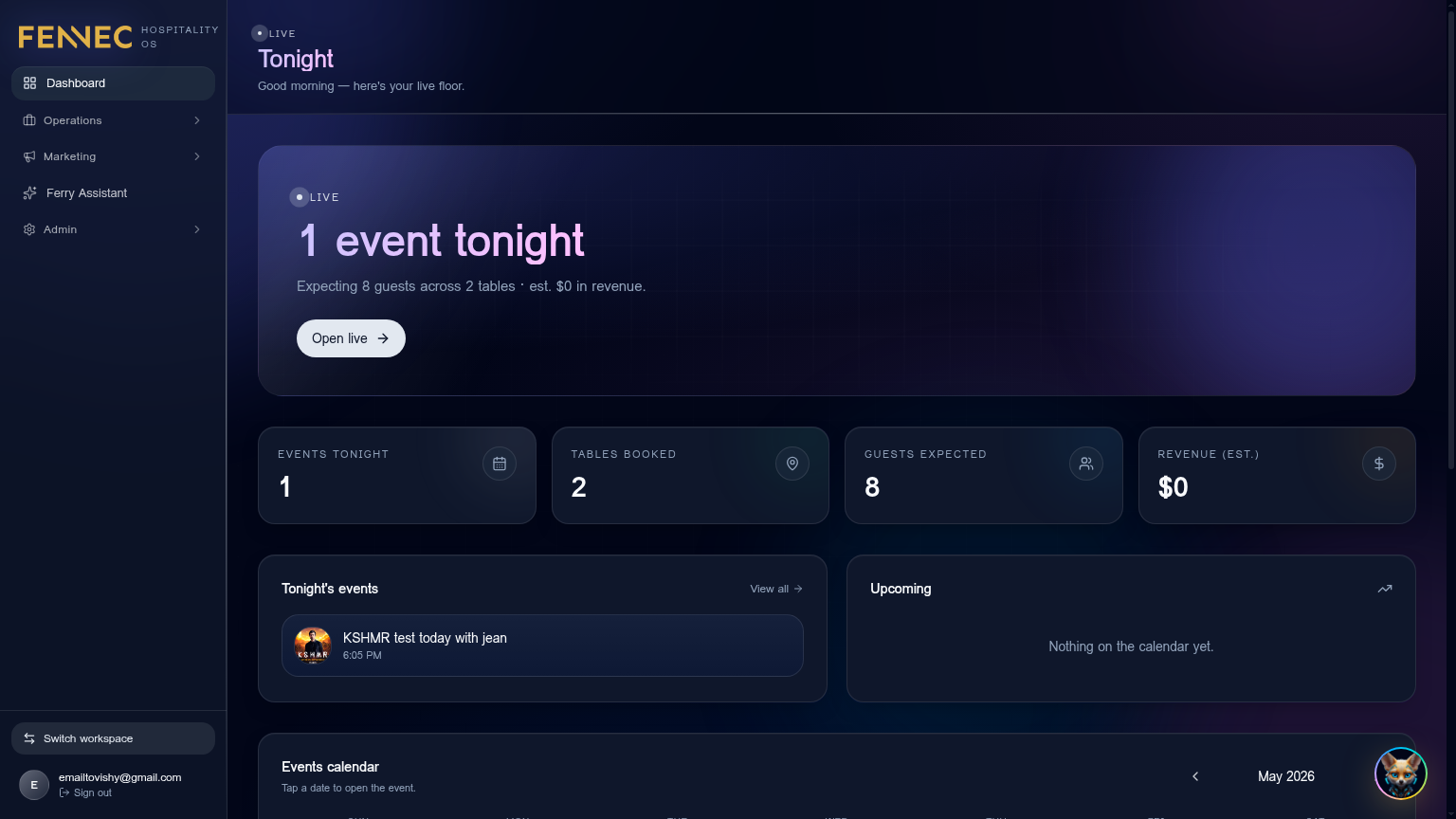
- 1Create your account
Go to the homepage → Join waitlist or click Login in the top-right. Sign up as a Business to create your venue's workspace. Your first user becomes the Admin of the tenant.
- 2Set up your venue profile
Open Settings → Organization. Add your venue name, timezone, default currency, logo, and capacity. This information flows into every customer-facing page (tickets, widgets, passes).
- 3Invite your team
Open Roles in the sidebar. Click Invite member, paste their email, and pick a role: *Manager*, *Host*, *Bottle Girl*, *Bartender*, *Scanner*, *Coat Check*. Each role unlocks a different in-app view.
- 4Connect your tools
Visit Settings → Integrations. The most common ones to connect first are Square (for POS, bookings, terminals) and Messaging (Twilio for SMS, Resend for email).
- →Every product is opt-in — disable the ones you don't need from Settings.
- →Use the global ⌘K search in the dashboard to jump to any screen.
- I don't see the sidebar items my teammate sees.Your role doesn't have those permissions. Ask an Admin to open Roles → [your user] and toggle the right modules.
- I signed up as Personal by mistake.Log out, sign up again with Business selected, then ask support to merge the two accounts.
Floor plan editor
Design your venue layout once, reuse it everywhere.
Your floor plan powers bottle service, table reservations, the live event view, and the host's drag-and-drop seating. Build it once in the editor and Fennec wires it into every product.
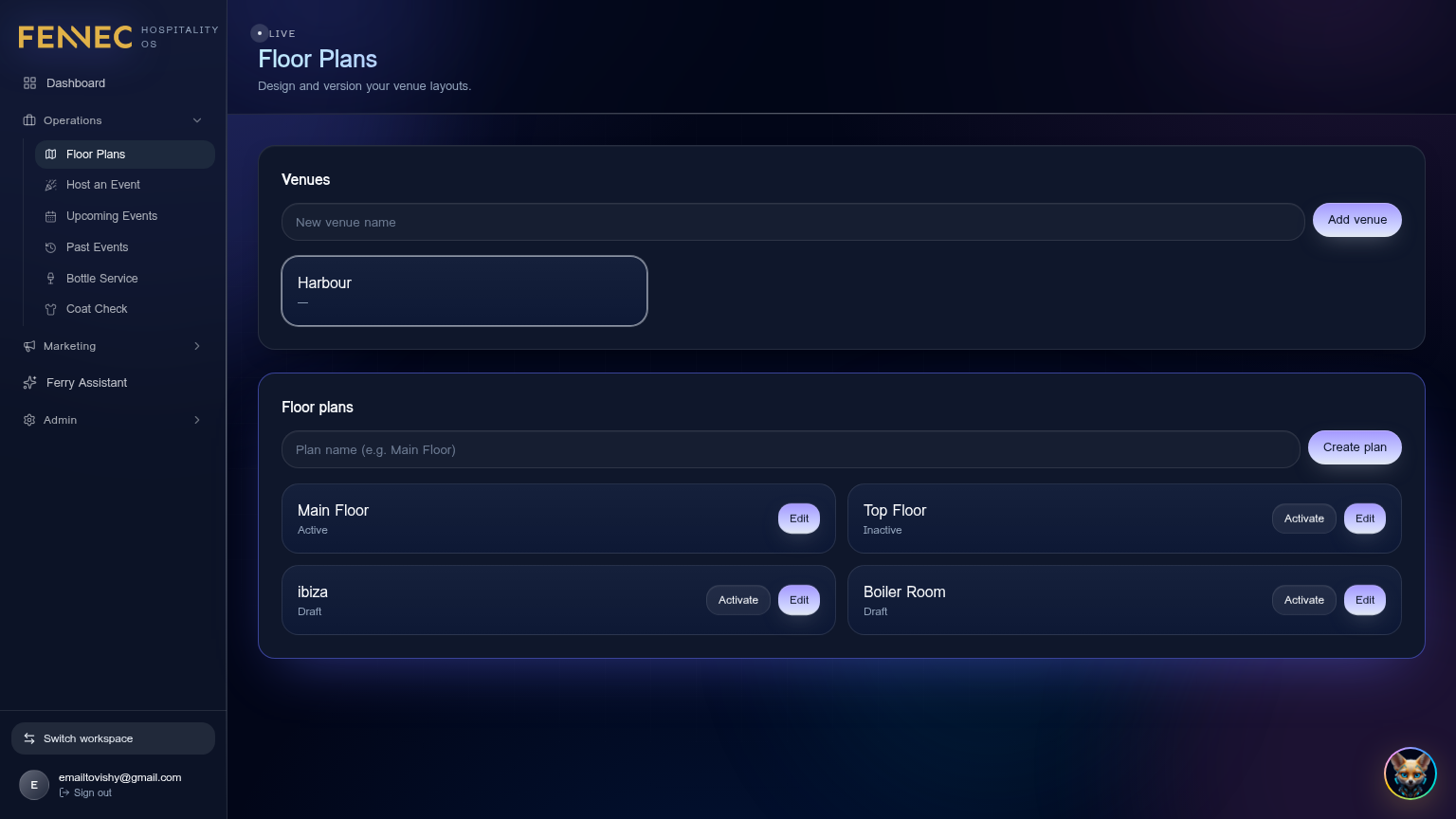
- 1Open the editor
Sidebar → Floor plans → + New floor plan. Give it a name (e.g. *Main Room*, *VIP Lounge*) and click into it.
- 2Add tables, sections and stage
Drag table shapes from the right toolbar onto the canvas. Use rectangles for booths, circles for cocktail tables. Snap-to-grid is on by default — hold ⌥ to free-place.
- 3Tag tables with min spend & capacity
Click a table → side panel. Set *Min spend*, *Seats*, *VIP / Standard*, and a unique table number. These show up to bottle hosts and promoters when they assign guests.
- 4Upload an existing floor plan image
Click Background → upload a PNG/JPG of your CAD layout. Tables drag on top so your map matches reality.
- →You can have multiple floor plans (e.g. *Friday layout* vs *Sunday brunch*) — pick which one applies when you create an event.
- Tables overlap or won't snap.Hold ⌥ / Alt to free-place, or zoom in (⌘+) and re-drop the table — snap is per-pixel at small zoom levels.
- My background image looks stretched.Upload a PNG that matches your room's aspect ratio. Use Background → Fit to letterbox instead of stretching.
- A table doesn't appear in bottle service.Make sure the table has a table number and Min spend set, and that the floor plan is the one selected on the event.
Creating an event
From draft to doors open in under 10 minutes.
Every show, brunch, or private party is an Event in Fennec. Once created, the event becomes the hub for guestlist, ticketing, bottle service, promoter codes, scanning, and live ops.
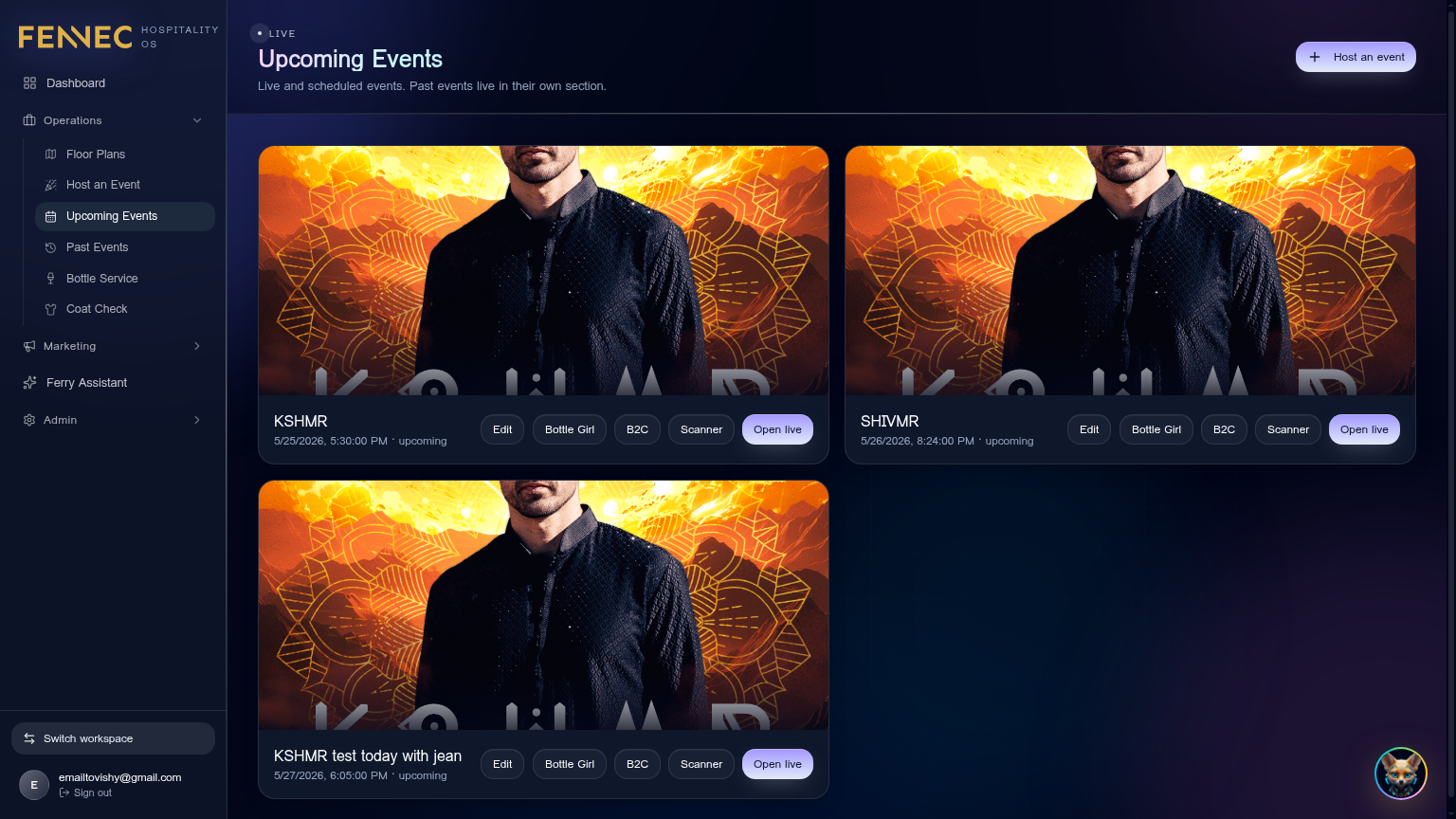
- 1Create the event
Events → + New event. Enter title, date, doors-open / close time, host DJ, pick a floor plan and add an event poster (the designer is built-in).
- 2Configure ticketing
Inside the event, open Tickets. Add tiers (*GA*, *Early bird*, *VIP*). Set price, quantity, sale start/end. Toggle Public sale to expose them on your widget.
- 3Configure bottle service
Open Bottle service. Each table from your floor plan appears with *Min spend* and *Status*. Bottle hosts use this view live to take orders.
- 4Share the public event page
Top right → Share. Copy the public link or embed the widget on your website. The page auto-pulls poster, tickets and tables.
- Tickets aren't visible on the public page.Open the tier → confirm Public sale is ON and the Sale window covers right now in your venue's timezone.
- The poster looks blurry on share previews.Re-export from Poster designer → Export → 2x. Anything below 1200px wide gets compressed by social platforms.
Live event ops
Run the night from one screen.
On event night, open Events → [your event] → Live. This is the operator's cockpit: live guest count, scanned tickets, bottle revenue, table status, and quick actions for door staff.
- 1Open the right Live view
Each role has its own Live mode. From the event page you'll see role tabs — Web app view (manager dashboard) and PWA view (tablet/phone) — for: *Host*, *Bottle Girl*, *VIP Host*, *Scanner*, *Coat Check*. Tap the role you need.
- 2Door scanning
On a tablet, open the Scanner PWA. Camera turns on, scan QR codes from ticket emails or Fennec Pass. Green check = valid, red = duplicate/refunded.
- 3Bottle service flow
Bottle hosts tap a table → add items from the bar menu → take the Square Terminal payment → kitchen/bar gets the ticket via your Square POS automatically.
- 4Generic live URL
Share /r/live/{eventId} with all staff. After they log in, Fennec picks the correct live view automatically based on their role.
- Scanner says "already used".The QR was scanned at another door. Open Live → Scans log to see which device + when. Use Manual override if it's a genuine re-entry.
- Bottle host's payment screen is frozen.Re-pair the Square Terminal (Settings → Integrations → Square → Terminals) — usually a Wi-Fi drop. Orders save locally and re-sync.
- Numbers on the live dashboard look stale.Pull-to-refresh on tablets, or click the ↻ badge in the top right of the Live view to force-resync.
Bottle service
Tableside ordering and tap-to-pay in one flow.
Bottle service turns your floor plan into a live ordering board. Each table shows its guests, current tab, min spend progress, and a one-tap path to add bottles, mixers, and food, then collect payment on a Square Terminal.
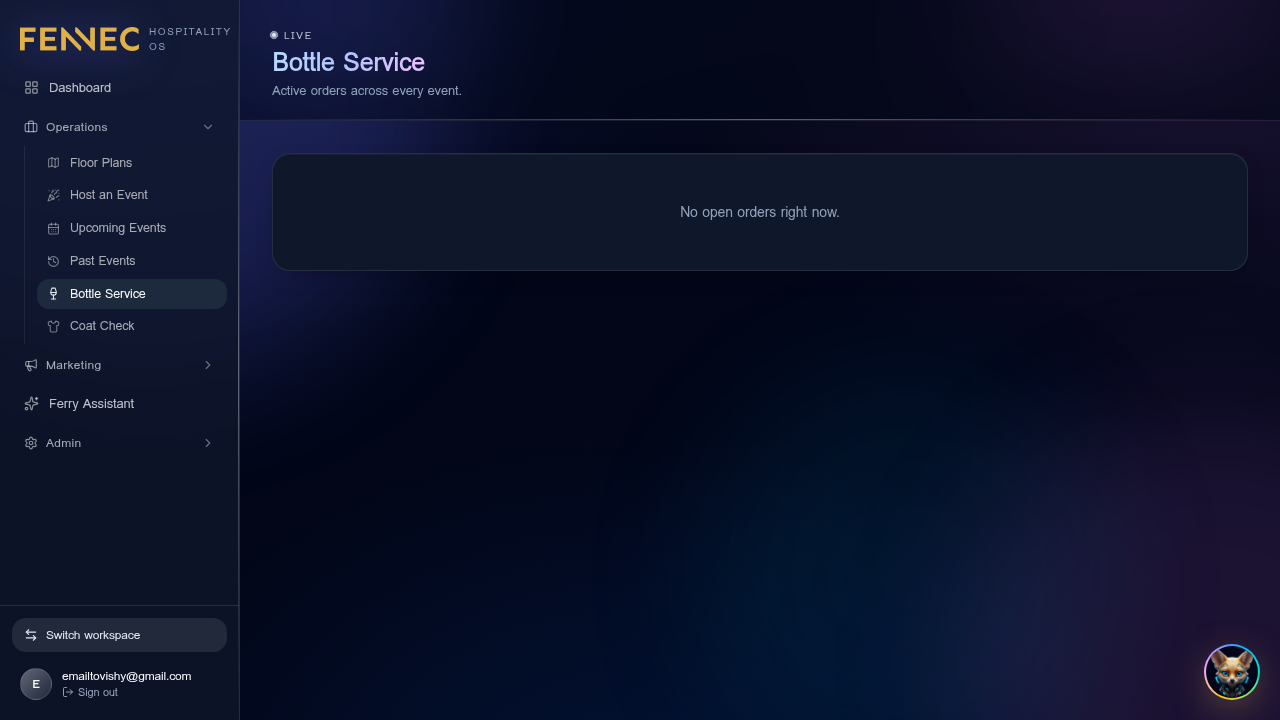
- 1Open the bottle service view
Sidebar → Bottle service → pick tonight's event. Tables you set up in the floor plan appear color-coded: grey = empty, amber = seated, green = paid in full.
- 2Seat a guest
Tap an empty table → Seat guest → search the CRM or type a new name. Optional: attach a deposit / pre-paid table from the event.
- 3Take an order
Tap Add items → pick from your Bar menu (pulled from Square). Quantities, modifiers, and discounts apply instantly. Items flag low-stock if connected to Stock Room.
- 4Collect payment
Tap Charge → pick the paired Square Terminal → hand to guest for tap/insert. Receipt is texted automatically. The table flips to green.
- 5Close the table
At end of night, tap Close table to free the seat and roll the night's spend into the guest's CRM profile.
- →Min spend progress shows live — hosts can upsell before close.
- →Split a bill from Charge → Split by item or by share.
- A drink isn't in the bar menu.Add it in Square → Catalog, then run Settings → Integrations → Square → Pull bar menu again.
- Terminal not listed on Charge.Re-pair from Settings → Integrations → Square → Terminals → Generate pairing code.
Coat check
Tap, photo, tag — return the right coat every time.
Coat Check is a tablet-first PWA. The camera is live on the left of the screen; the right side is a friction-free intake form. Your operator captures the customer, their jacket photo, a tag number, and (optionally) accepts a Fennec Pass.
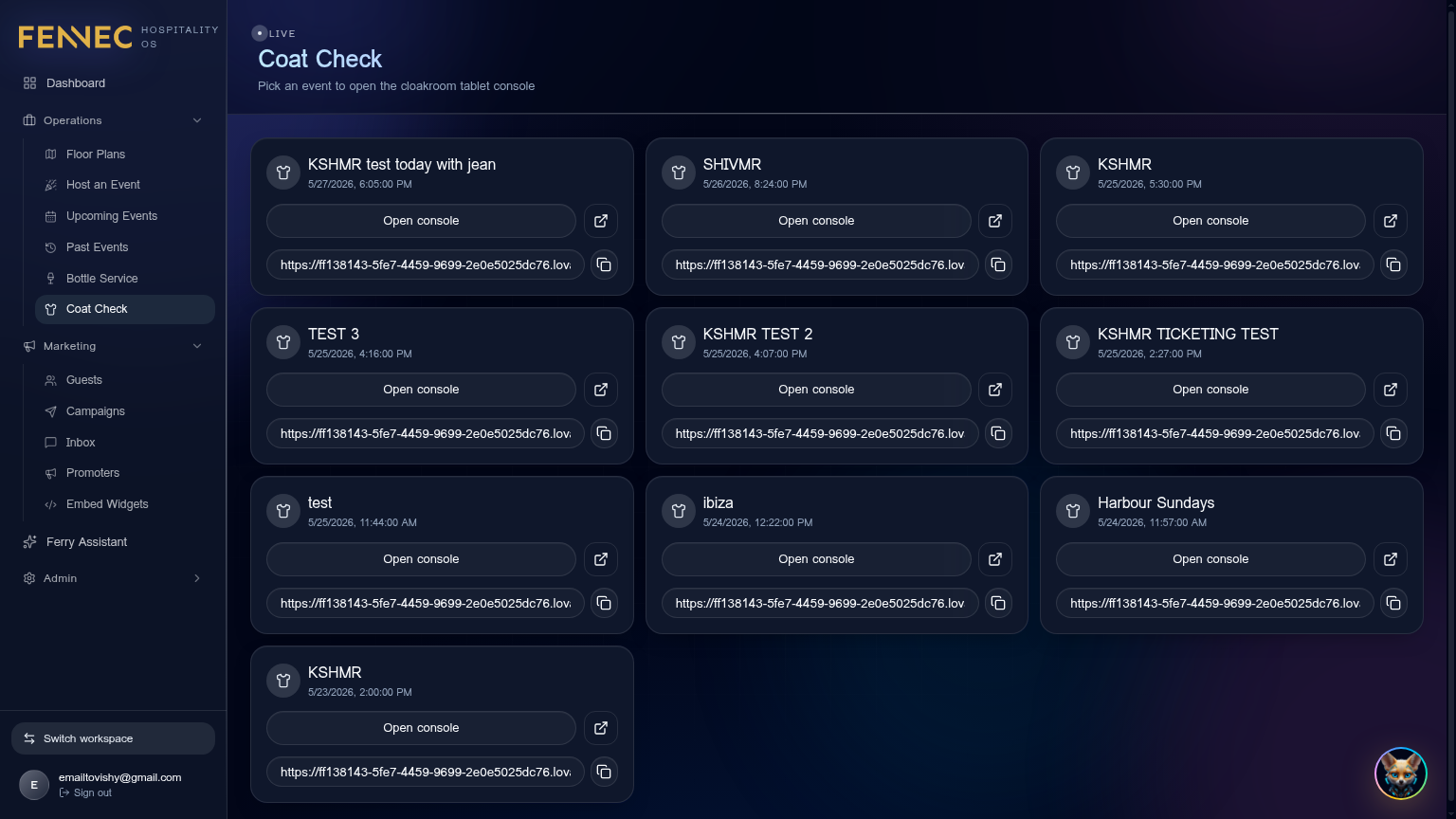
- 1Open the coat-check station
Sidebar → Coat check → pick the event, then Open station on a tablet. Add the tablet to your home screen so it runs full-screen.
- 2Check a coat in
Front-facing camera is always on — line up the jacket and tap Capture. The photo locks on the left. On the right, type the customer's name, phone, and assign a coat tag with the in-app numeric/alpha keyboard. Tap Save — a recovery code is sent to the customer via SMS.
- 3Check a coat out
Switch to Retrieve tab → scan the customer's pass or type the tag number → photo of the original jacket pops up so you grab the right one.
- →Customers can also flash a Fennec Pass at intake — it auto-fills name & phone.
- Camera shows a black frame.iPad/Android: open Safari/Chrome settings → grant camera permission to *app.fennecapp.com* → refresh the PWA.
- Customer can't find their SMS recovery code.Search Coat check → All tickets by phone or tag and check-out manually — the system still pulls the right photo.
Past events & reports
Recap revenue, attendance, and top tables in one click.
Every event auto-archives after doors close. Past events become a searchable history with revenue breakdown, ticket scan rate, top spenders, and CRM segments you can re-target.
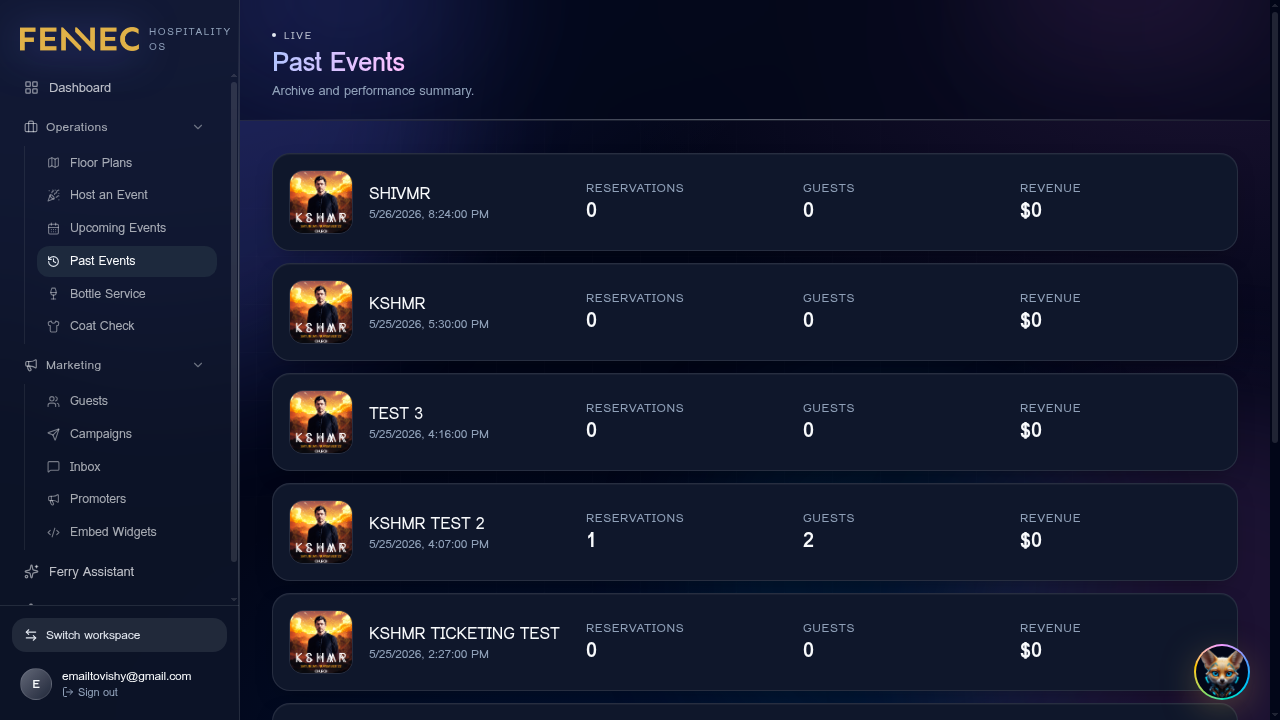
- 1Find a past event
Sidebar → Events → Past. Filter by date range, floor plan, or promoter. Click any row to open its recap.
- 2Read the recap
Recap shows: total revenue (tickets + bottle + bar), scanned attendance vs sold, bottle service rankings, and promoter commission owed.
- 3Export or re-target
Top right → Export CSV for accounting, or Create segment to push every guest of that night into CRM for a thank-you SMS.
- Recap numbers don't match my Square totals.Open Recap → Reconcile. This pulls Square net sales for the event window and surfaces unmatched orders (usually cash tips).
Promoter portal
Pay promoters fairly with auto-tracked links.
Each promoter gets their own login at /promoter. They can build guestlists, generate trackable links, request deposits, and see their commission in real time.
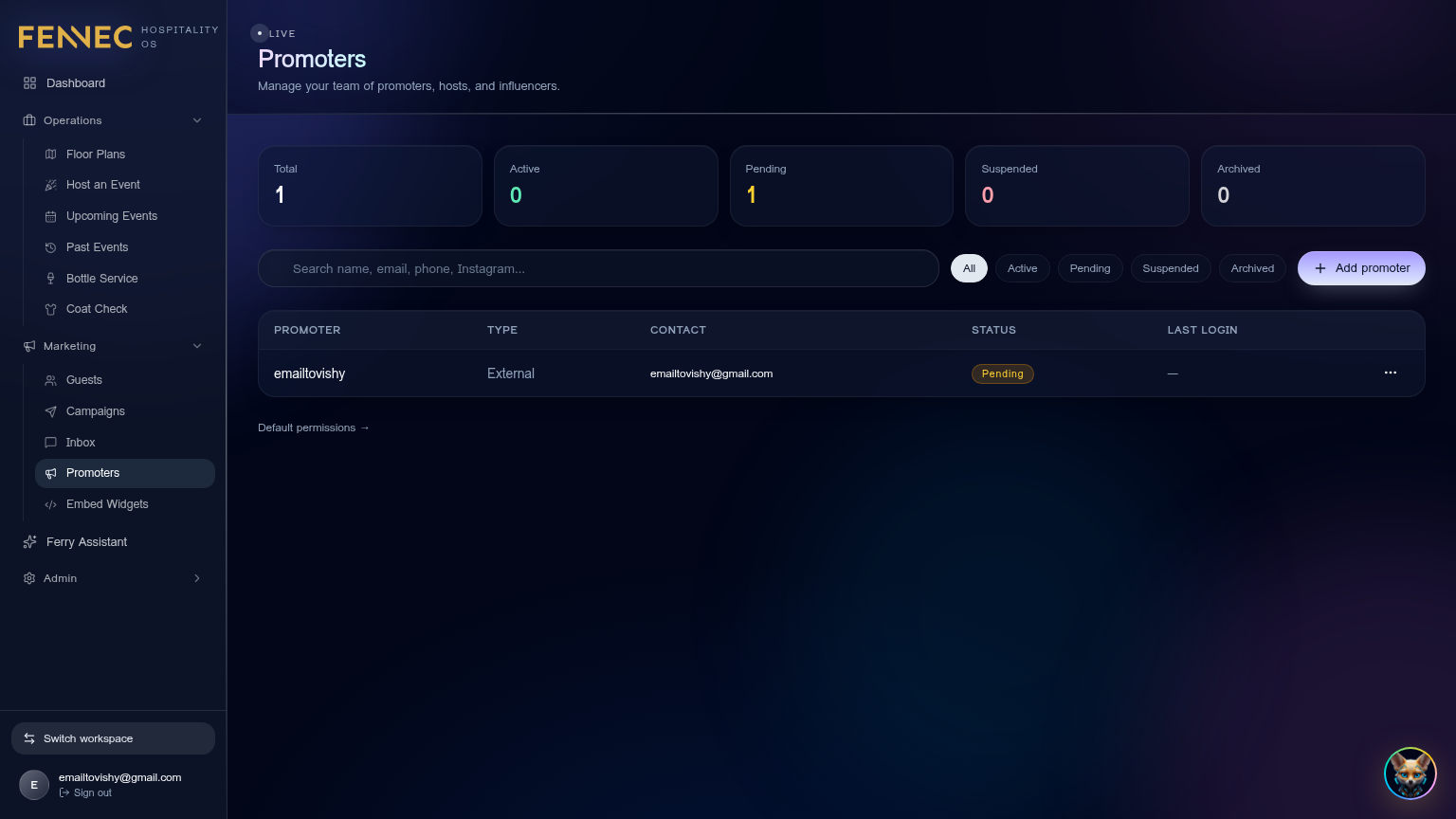
- 1Invite a promoter
Promoters → + New promoter. Enter their name, phone, commission %, and which events they're allowed to sell.
- 2Set their permissions
Open the promoter → Permissions tab. Toggle what they can do: *Add to guestlist*, *Generate promo codes*, *Take deposits*, *See revenue*.
- 3They share their link
Promoter logs in → Tracking links → copies their unique link. Every sale via that link auto-credits them. The commission shows on CRM → Promoter ledger.
- Promoter can't log in.Resend invite from Promoters → [name] → Resend invite. They must use the same email the invite was sent to.
- Sales aren't crediting to a promoter.Guest must check out through the promoter's tracking link in the same browser session. Cookies cleared = no credit. Use promo codes as a fallback.
Guest CRM
Know every regular before they walk in.
Every ticket buyer, table guest, and coat-check customer is automatically added to your CRM. From here you build segments and trigger campaigns.
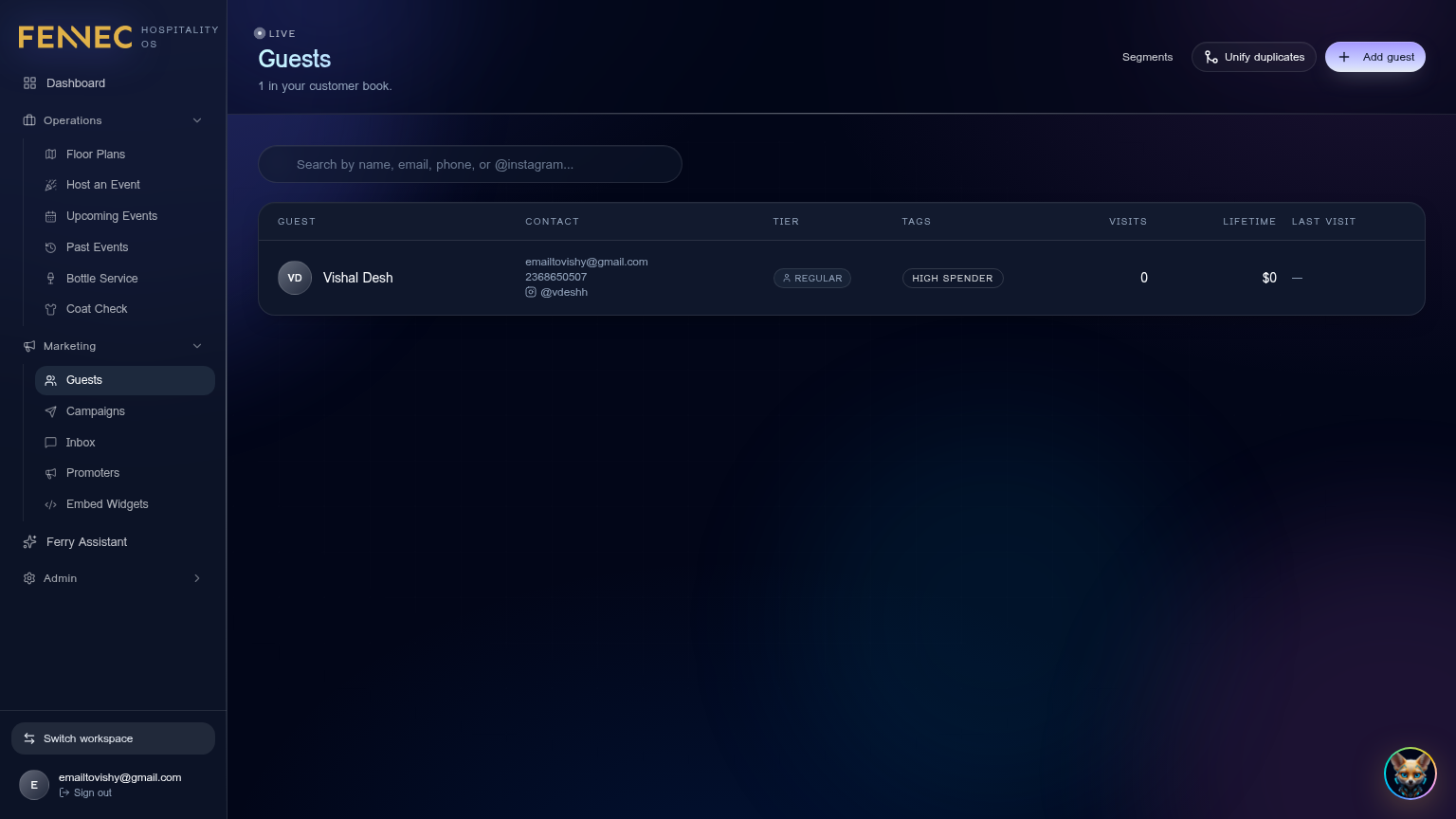
- 1Browse guests
Sidebar → CRM. Search by name, phone, or email. Click a guest to see lifetime spend, last visit, tables booked, and outreach history.
- 2Build a segment
CRM → Segments → + New. Pick filters like *Spent > $500*, *Last visit > 60 days*, *Has bottle history*. Save it — segments stay live and update automatically.
- 3Trigger a campaign
From a segment → Send campaign → pick SMS or email → drop in your message and a CTA link. Delivery uses your connected Twilio / Resend keys.
- I see duplicate guests.CRM → Tools → Merge duplicates. Fennec matches on phone + email and lets you confirm before merging.
- A guest's spend looks wrong.Spend pulls from Square + ticket sales. Click the number to see the source breakdown and reconcile manually.
Automations & comms
Set it once, let Ferry run it forever.
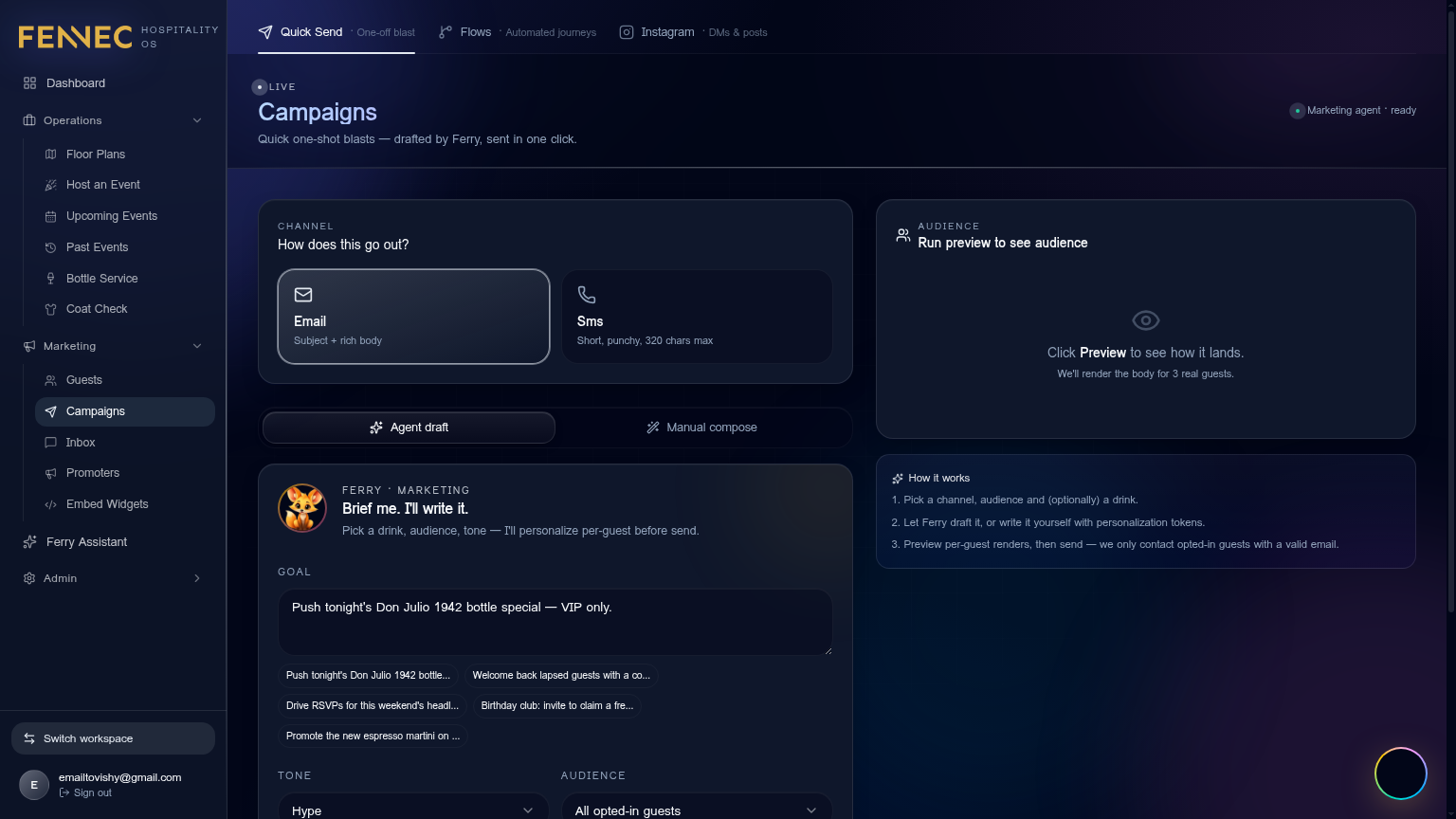
Automations are *if-this-then-that* flows for your venue: send a thank-you 24h after a visit, win-back lapsed regulars, remind tonight's tables to confirm. Build them visually in the flow editor.
- 1Create a flow
Sidebar → Campaigns → Flows → + New flow. Pick a trigger (e.g. *Guest checked out of coat check*, *Ticket purchased*, *Birthday in 7 days*).
- 2Add steps
Drag Wait, Send SMS, Send email, Add to segment, or Call webhook nodes onto the canvas. Connect them with arrows.
- 3Turn it on
Toggle Active at the top. The flow runs automatically — you'll see live stats on its detail page.
- SMS isn't sending.Settings → Integrations → Messaging — verify your Twilio sender number is approved and has a non-zero balance.
- Emails go to spam.Add SPF + DKIM records for your sending domain. Settings → Email domain guides you through it.
Inbox (unified comms)
SMS, email, and DMs from every guest in one thread.
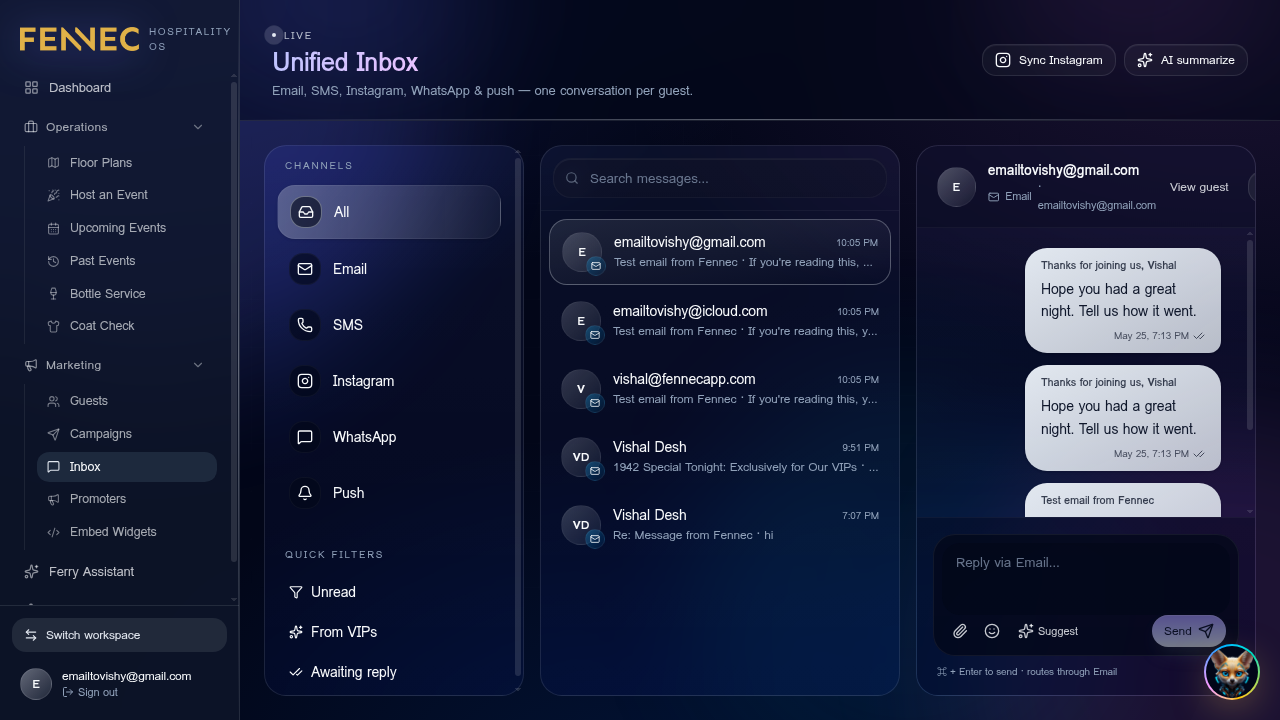
Inbox stitches together inbound replies from SMS, email, and your social DMs into a single conversation per guest. Anyone with the Host or Manager role can reply and the message routes back through the right channel.
- 1Open inbox
Sidebar → Inbox. Threads are sorted by most recent reply. Filter by Unread, Assigned to me, or Channel.
- 2Reply
Click a thread → type at the bottom → pick the channel chip (SMS / Email). Snippet templates are available with /.
- 3Assign & resolve
Use Assign to route a thread to a teammate. Mark Resolved when done to clear it from the active queue.
- Inbound SMS replies aren't showing up.Twilio webhook must point to /api/public/twilio-inbound. Re-check in Settings → Integrations → Messaging.
Bar menu & stock
Pulled live from Square, augmented with stock levels.
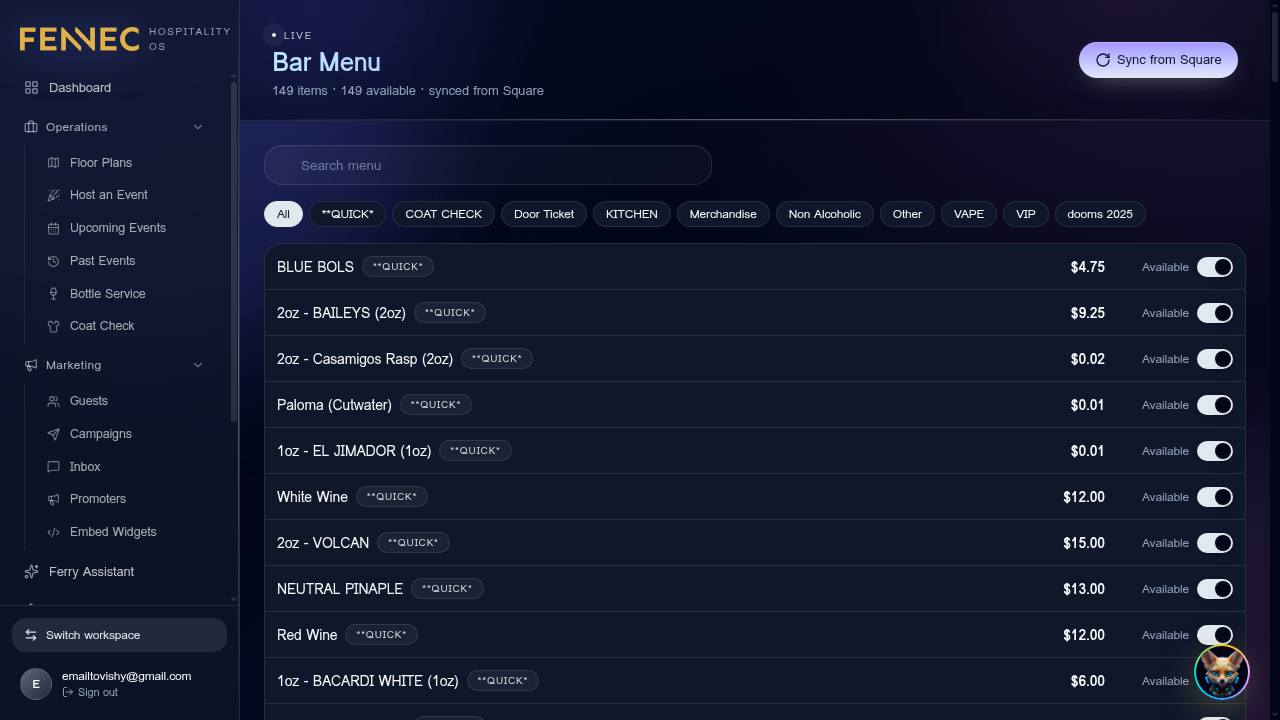
Your bar menu is the master list bottle hosts and bartenders see. It syncs from Square Catalog so prices stay one-source-of-truth, then layers Fennec-only fields like *signature cocktail*, *upsell suggestion*, and live stock counts.
- 1Pull from Square
Sidebar → Bar menu → Sync from Square. New items appear, deleted items get archived (never hard-deleted).
- 2Group into sections
Drag items into sections like *Champagne*, *Vodka*, *Cocktails*. Sections control how the menu renders on the bottle host tablet.
- 3Track stock
Open Stock room → set par levels per item. Sales decrement stock automatically; the menu shows a low-stock badge when below par.
- An item disappeared after sync.Square archived it. Open Bar menu → Archived and Restore if needed, or re-create the item in Square.
- Stock count looks wrong.Run a Manual count from Stock Room → enter actual bottles → Fennec rebaselines from that moment.
Website widgets
Embed tickets, tables and signup forms on any site.
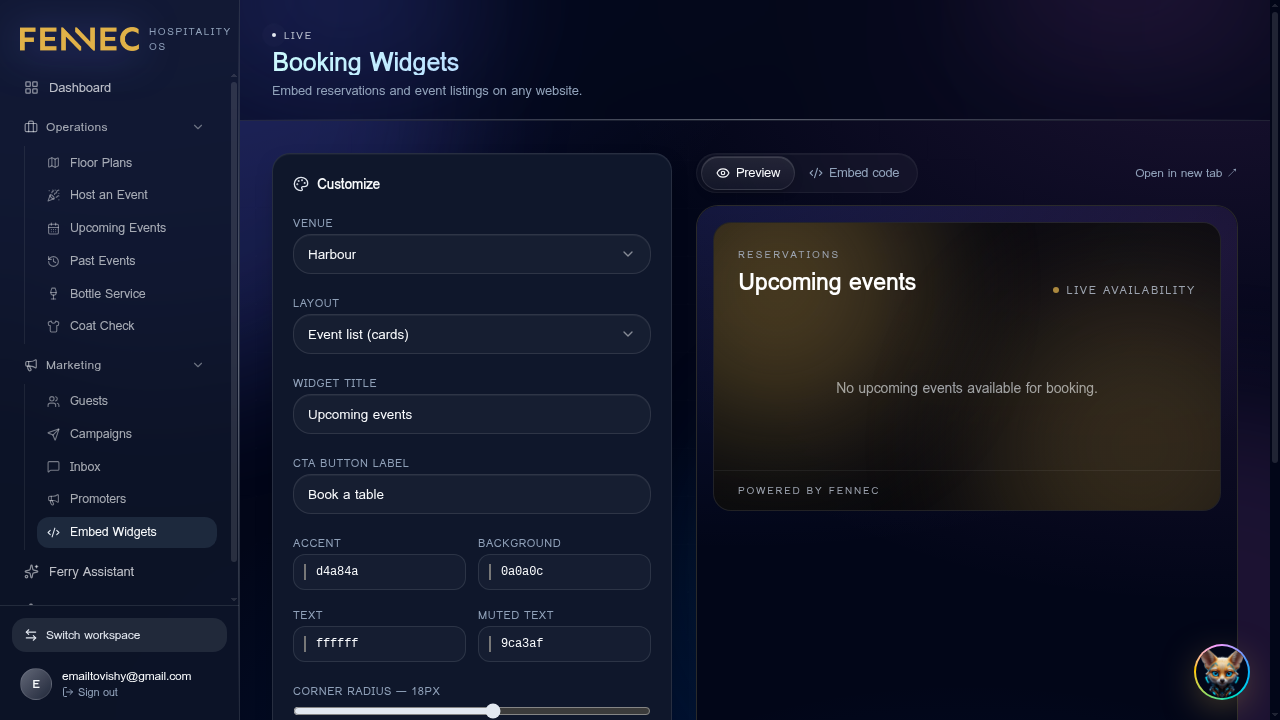
Widgets are drop-in HTML embeds that bring Fennec functionality into your existing marketing site (Squarespace, Webflow, WordPress, custom). One script tag, zero CORS headaches.
- 1Pick a widget type
Sidebar → Widgets → + New widget → choose *Ticket sales*, *Table booking*, *Guestlist signup*, or *Newsletter*.
- 2Style it
Pick brand color, font, and dark/light mode. Live preview updates as you type.
- 3Copy the embed
Click Get embed code and paste the `<script>` tag wherever you want the widget on your site. Updates push instantly without re-pasting.
- Widget shows a blank box.Check your site's Content Security Policy — allow scripts and frames from app.fennecapp.com.
- Styles look broken inside a Squarespace block.Use a Code block (not a Markdown block) so the `<script>` tag isn't escaped.
Roles & permissions
Give each teammate exactly what they need.
Roles control which modules a teammate sees and what actions they can take. Fennec ships with sensible defaults — Admin, Manager, Host, Bottle Girl, Bartender, Scanner, Coat Check, Promoter — and you can clone any of them into custom roles.
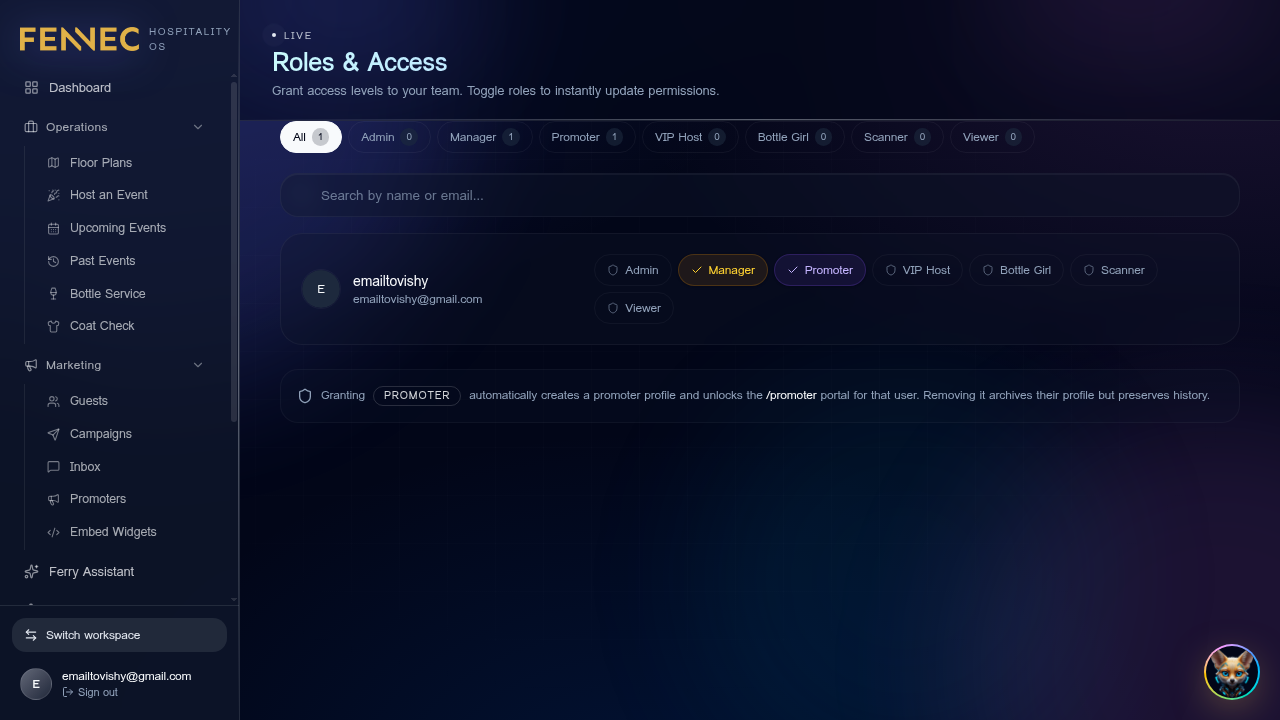
- 1Invite a teammate
Sidebar → Roles → + Invite member. Enter email, pick a base role, optionally restrict to specific events.
- 2Customize a role
Click any role → toggle modules and actions (view / create / edit / delete). Changes apply on the user's next refresh.
- 3Remove access
Open the member → Suspend (reversible) or Remove (hard). Sessions are revoked within 60 seconds.
- Teammate sees "Forbidden" on a page.Their role lacks that module. Add it in Roles → [role] → Modules and ask them to refresh.
Square integration
POS, terminals and bookings in one click.
Fennec connects to Square so every order placed in-app posts to your Square POS, every Square booking pulls into your event page, and every terminal payment settles to your existing merchant account.
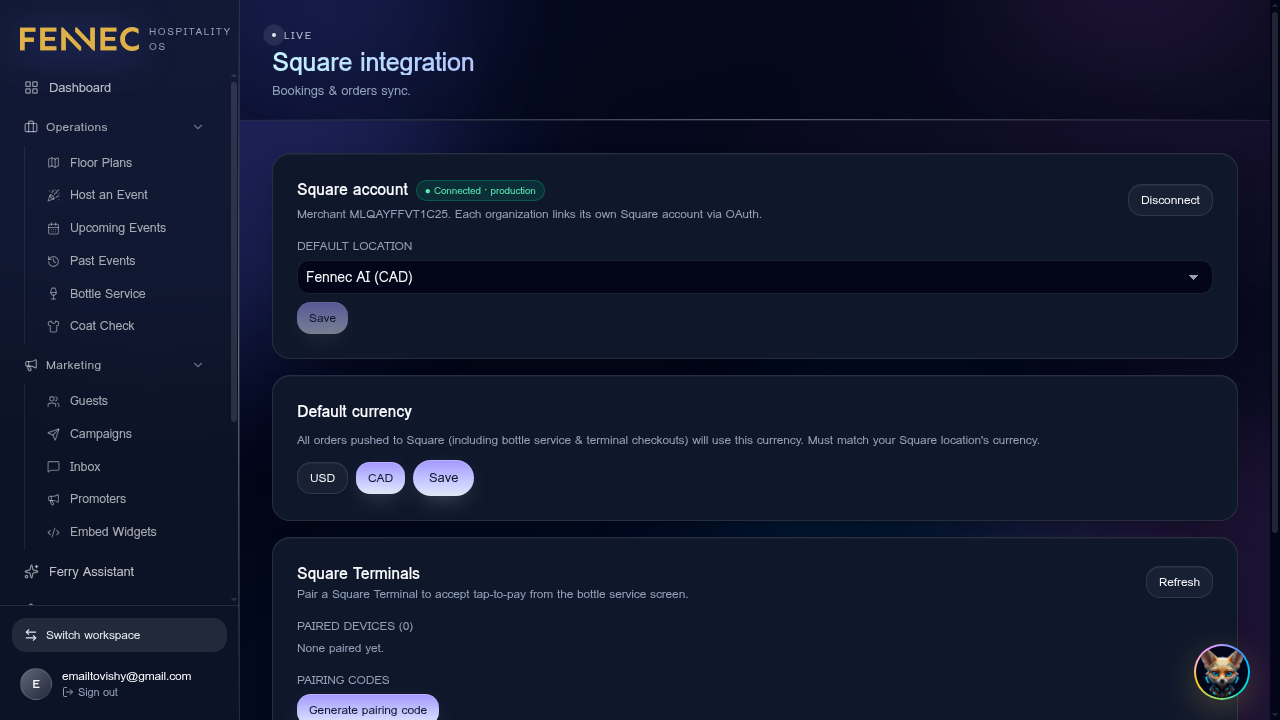
- 1Connect Square
Settings → Integrations → Square → Connect Square. A Square login pop-up opens; pick your merchant and approve. No API keys to paste.
- 2Pick the default location
Once connected, choose your venue location from the dropdown — currency auto-fills to match.
- 3Pair a Square Terminal
Scroll to Square Terminals → Generate pairing code. On your physical terminal: *Sign in → Settings → Square Terminal API → enter the code*. Done — bottle hosts can now tap-to-pay.
- 4Pull your bar menu
Click Pull bar menu. Every item from your Square catalog imports as a Fennec menu item, ready for bottle service.
- Connection says "needs attention".Square refresh token expired. Click Reconnect Square — it re-runs OAuth without losing your existing data.
- Wrong currency on tickets.Change the Default location on the Square integration page — currency follows the location.
- Terminal pairing code expired.Codes expire in 15 minutes. Generate pairing code again and enter on the terminal immediately.
Ticketing integrations
Eventbrite, Showpass, Ora, TicketWeb, POSH, Flite City and Tixr.
Fennec sits on top of the ticketing platform you already sell on. You keep selling there; Fennec owns the guest, the pass and the door. Everything lives on Operations → Ticketing Integrations (/operations/ticketing), and each provider card has its own How it works diagram.
- 1Connect the provider
On Operations → Ticketing Integrations, click Connect on the provider card. Eventbrite, Showpass and Flite City sign you in once (no keys to paste). Tixr uses the partner client key, secret and group ID your Tixr rep issues you. Ora and POSH connect over a secure link from their side. TicketWeb works from the sales report they email you — forward it to the address shown on the card.
- 2Link the event
Each upcoming Fennec event shows Link event — pick the matching listing from the provider. The same shortcut sits in Upcoming Events → ⋯ → Link event.
- 3Import buyers
Attendees become real Fennec tickets tagged with their source, plus guest records in your CRM with name, email, phone, birthday and (where the provider has it) Instagram. Refunds and cancellations sync back. Sync re-pulls at any time.
- 4Invite them to rewards
Imported buyers automatically get one email inviting them to claim their Fennec Pass and join your rewards program. People already in Fennec or already invited are skipped. Invite re-runs it manually.
- 5Scan at the door
The normal Fennec scanner accepts both the Fennec Pass and the buyer's original ticket QR — no second app. Check-ins stay in Fennec.
- →Hosting an event you sell elsewhere? On the event's External ticketing section you can pick a primary provider so your Fennec event page sends guests straight to that checkout.
- →Numbers from each provider are shown as their own source next to Fennec's own sales, so you always know where a guest came from.
- POSH tickets won't scan.POSH QR codes can't be scanned in Fennec yet — check those guests in by name from the Guest List. Everything else (profiles, rewards, refunds) still syncs.
- A guest is missing after buying.Hit Sync on that provider's card. If they're still missing, confirm the event is linked to the right outside listing.
- Card says the connection needs attention.The provider's access expired. Click Reconnect on the card — your linked events and imported guests are kept.
Meta Pixel & marketing analytics
Know which ad actually filled the room.
Connect Meta once and Fennec tracks the whole journey — event page views, ticket clicks and completed purchases — then reports the funnel and return per event. Because purchases are reported from Fennec's side, sales still count even when a browser blocks tracking.
- 1Open Marketing → Integrations
In the sidebar under Marketing, open Integrations. The Meta card lights up green once it's connected.
- 2Connect Meta
Click the Meta card, then connect your account and pick the pixel you want Fennec to report to. Nothing needs to be added to your website.
- 3Read the numbers
Open Marketing → Analytics (/campaigns/analytics) for the funnel: views, clicks, purchases, cost per guest and return, broken out per event and per campaign. Tickets bought on outside platforms are attributed back too.
- →Give Meta a few hours after connecting before judging the numbers — matching improves as events come in.
- →Export any view to CSV or a branded PDF from the top-right of the analytics page.
Laylo
Keep your Laylo drop audience and your Fennec CRM in step.
Laylo is where a lot of nightlife audiences already live. Connect it and your consented Fennec guests get mirrored across as subscribers, while every RSVP and opt-out on a drop comes back and lands on the right guest in your CRM — tagged, mapped to the event, and ready to trigger a flow.
- 1Open Marketing → Integrations
In the sidebar under Marketing, open Integrations. The Laylo card lights up green once it's connected.
- 2Connect Laylo
Paste the API key from your Laylo dashboard (Settings → Developers). Fennec checks it before saving. If you also set a webhook signing secret in Laylo, paste it here so every delivery is verified.
- 3Add the webhook address
Copy the webhook address shown on the Laylo page in Fennec and paste it into Laylo's webhook settings. Treat it like a password — you can rotate it any time.
- 4Choose what syncs
Decide whether to mirror your audience to Laylo, who counts (opted-in guests only is the safe default), whether new Laylo fans become CRM guests, and whether a Laylo opt-out also unsubscribes them in Fennec.
- 5Map drops to events
Drops show up on the page the first time Laylo sends activity. Link one to a Fennec event so its RSVPs count towards that night.
- 6Automate it
In Campaign Flows you'll now find two extra triggers: Fan RSVPs on Laylo and Fan opts out on Laylo — perfect for a welcome text, a rewards invite, or an internal alert.
- →Laylo can receive contacts but can't send its fan list or custom answers back — use Fennec Signup forms (same page) when you need questions answered; those answers land straight in your CRM.
- →Switch Integration active off to pause everything without disconnecting.
Ferry, the AI Fennec
Ask anything about your venue in plain English.
Ferry is your in-dashboard AI agent. He has read access to your CRM, events, inventory, and reports — and can take actions like creating campaigns, drafting posters, or building automations.
- 1Open Ferry
Click the Ferry fox in the top bar (or the sidebar Assistant entry). A chat opens on the right.
- 2Pick the right agent
Use the agent switcher at the top of the chat: *General*, *Marketing*, *Inventory*, *Staff*, *Events*. Each one is tuned with the right tools.
- 3Example prompts
“Who hasn't visited in 90 days but spent over $1k?” “Draft a Friday SMS for our 50 top spenders.” “What's our lowest-stock liquor right now?” “Create a poster for Saturday's event.”
- Ferry says "I can't access that data".Your role doesn't grant the underlying module. Ask an Admin to enable it under Roles.
- Responses feel slow.Switch agent to Fast in the chat header. Heavy agents (Marketing, Inventory) trade speed for tool access.